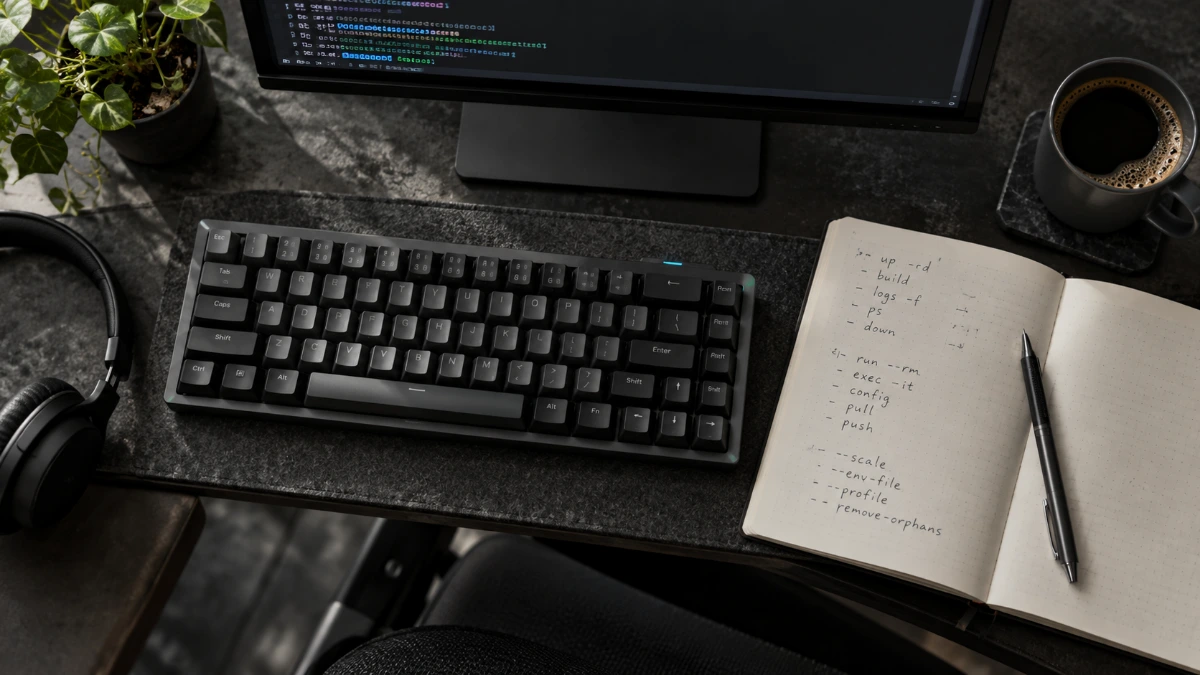
docker compose has a compact but powerful command set. Learning the dozen or so commands below — and a few of their flags — covers nearly everything you will do day to day.
Lifecycle commands
docker compose up
Creates and starts every service. Add -d to run in the background, --build to rebuild images first and --wait to block until services are healthy. Running docker compose up again applies any changes made to the file.
docker compose down
Stops and removes containers and networks. Add -v to delete named volumes as well — useful for a clean slate, but destructive for data you wish to keep.
start, stop and restart
These act on existing containers without recreating them, which is faster when nothing in the configuration has changed.
Inspection commands
docker compose ps            # list containers and status
docker compose logs -f web    # follow logs for one service
docker compose top            # show running processes
docker compose config         # print the resolved configuration
docker compose images         # list images in use
Working inside containers
docker compose exec web sh runs a command in an existing container. docker compose run --rm web pytest starts a new, temporary container for one-off tasks such as tests or migrations.
Image management
docker compose build— build or rebuild images defined withbuild.docker compose pull— fetch the latest versions of referenced images.docker compose push— push built images to their registry.
Development helpers
docker compose watch synchronises files and rebuilds services automatically as you edit code. docker compose cp copies files between the host and a service container.
Global flags worth knowing
-fselects one or more Compose files.-psets the project name, allowing parallel copies of a stack.--profileactivates optional services.--env-filechooses an alternative environment file.
Keep this sheet nearby for your first few weeks; the commands soon become second nature.
Read command intent before executing it
Operational commands differ in their effect on application state. Restart reuses existing containers; up reconciles the desired configuration and may recreate them; down dismantles project resources. These distinctions matter when changing environment variables, image versions or persistent storage.
Before using removal flags, inspect the project name and declared volumes. Prefer service-specific commands during investigation, and preserve logs before replacing a failing container. Destructive convenience commands belong in documented maintenance procedures, not in an unexamined copy-and-paste routine.
Follow a complete daily command sequence
A practical docker compose command cheat sheet should follow the order in which you work. Begin in the intended project directory and run docker compose config to check the resolved model. Start the application with docker compose up -d, inspect it with docker compose ps and then read a service's logs. When you finish a session, choose whether to stop containers for later use or remove the project's containers and network. This sequence is easier to remember than an alphabetical list because each command answers the next question in the workflow.
Use the same project name and file selection flags throughout that sequence. For example, selecting an override file during startup but omitting it during inspection can produce confusing results. Keep repeated options in a documented command or a simple project task so that teammates use the same model. Before executing a command copied from another repository, check its working directory, selected files and target service. Many surprising outcomes come from addressing a different project rather than from a defect in the Compose command itself.
Understand start, restart, recreate and rebuild
These words describe different operations. Starting an existing stopped container resumes it with its existing configuration. Restarting stops and starts an existing container; it does not automatically rebuild an image or apply every change in your YAML. Running up lets Compose reconcile the project with the selected configuration and recreate services when needed. Building creates an image from a build context.
This distinction makes troubleshooting faster. If you changed only an application log level in the service environment, investigate whether the container was recreated with the new setting. If you changed a Dockerfile instruction, inspect the build and image instead. If source code is supplied by a bind mount, rebuilding may be unnecessary for that edit, although the application may still need to reload. Choose the command that corresponds to the changed layer.
Choose between exec and run
Use docker compose exec when you want to execute a process inside an already running service container. This is useful for inspecting the application's environment, opening a shell or running a diagnostic command against the exact container serving requests. The requested executable must exist in that image. A minimal image may not include a familiar shell or network utility, so a command failure can reflect the image contents rather than a problem with Compose.
Use docker compose run when you want a separate one-off container based on a service definition. Typical examples include an administrative task, a migration or a test command. It has its own lifecycle and is not simply another process in the existing service container. Service ports are not published by default for a one-off run, which matters if you expect a browser to reach it. For disposable tasks, consider the removal option so that completed containers do not accumulate. Confirm the target database and environment before running a task that changes persistent data.
Inspect first and clean up deliberately
The most useful inspection commands give you different kinds of evidence. The status listing shows whether services are running or restarting. Logs reveal what their processes reported. The resolved configuration shows how interpolation and selected files shaped the model. Together they help separate application failures from configuration mistakes. Start with the affected service instead of dumping every log at once. Add timestamps or limit the initial output when the project is busy, then widen the time window if the first view does not include the failure.
Cleanup commands deserve more attention than inspection commands. Removing containers is different from removing images or volumes, and a named database volume can contain the only copy of your development records. Do not add destructive flags merely to make a command appear more thorough. Identify the resources involved and decide which state you want to preserve. If you need a completely fresh database for a test, use disposable project storage or back up the existing data first. A reliable cheat sheet explains consequences as well as syntax.
Make commands suitable for scripts
Interactive habits do not always translate directly into automation. A command that allocates a terminal can behave differently in a noninteractive job, and a detached startup can finish before an application is ready for tests. Have scripts check exit codes and wait for a meaningful readiness condition. Capture service logs when a job fails so that the next person can diagnose the cause. Avoid printing resolved secrets into shared output. A helpful pipeline produces enough evidence to explain failure without depending on someone opening an interactive shell afterward.
Use a unique project name for parallel jobs and preserve it through cleanup. Shared host ports and shared external resources can still collide, so isolation requires more than a unique container name. Keep the command sequence close to the repository's configuration and explain any required environment values. When the same sequence is used locally and in CI, failures are easier to reproduce. Review that sequence whenever you add a new service or change a startup dependency, rather than letting the automation drift away from the developer workflow.
Frequently asked questions
Which command should I run before starting a project?
Run docker compose config to validate and inspect the model. It catches many syntax and interpolation problems before containers are created. Treat its output carefully because resolved configuration may contain values that should not be shared publicly.
Does restart apply changes to environment variables?
A restart reuses an existing container. To apply changed service configuration, use a Compose operation that recreates the affected container as needed. Confirm the resolved settings first so you do not recreate a service with the same incorrect values.
Can I run a command in a stopped service?
Exec requires an existing running container. Start that service if you need to inspect it directly, or use a one-off run when you want a separate task container. The right choice depends on whether existing container state matters.
Does down always delete volumes?
Named volumes are normally preserved unless you explicitly request their removal. Check the options in the command you are about to execute and identify any external resources. Never assume a copied cleanup command preserves your database.
Conclusion
The best docker compose command cheat sheet helps you choose an operation by its purpose. Validate configuration, start the intended project, inspect status and logs, and distinguish a restart from a rebuild or recreation. Use one-off tasks deliberately and understand cleanup flags before applying them. These habits make everyday commands predictable and turn the same command sequence into a useful foundation for team documentation and automation.